Staying fit at home has never been more popular, and the Peloton Bike stands out as a favorite for many. With its live classes, smooth rides, and engaging features, it’s easy to see why people love it. But even the best fitness equipment can have problems. A stuck pedal, a blank screen, or odd noises can leave you frustrated and searching for answers. If you want to solve issues quickly and get back to your workout, you’re in the right place.
This guide will help you troubleshoot the most common Peloton Bike problems. You’ll find clear steps, real examples, and expert tips to keep your bike running smoothly. Whether you own a Peloton Bike, Bike+, or are considering a purchase, this article gives you the confidence to tackle issues head-on.
Let’s dive in and get your ride back on track.
Understanding Your Peloton Bike
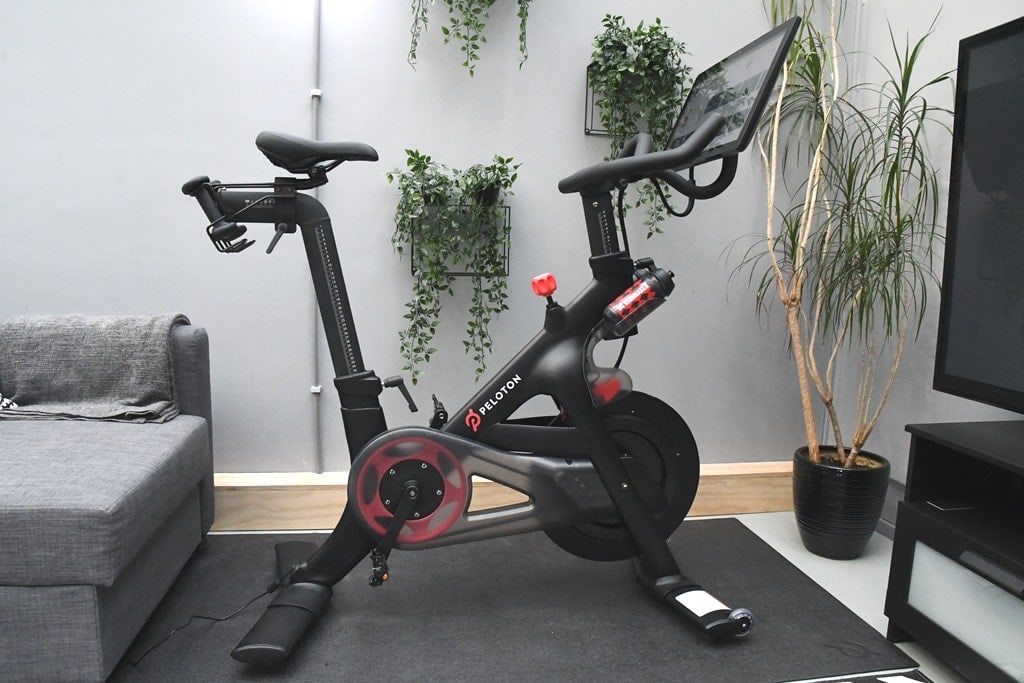
Before fixing problems, it helps to know the basics of your Peloton Bike. There are two main models: the original Peloton Bike and the Peloton Bike+. Both offer a sturdy frame, a digital touchscreen, Bluetooth connectivity, and built-in speakers. However, the Bike+ adds features like automatic resistance adjustment, a rotating screen, and improved audio. Knowing your model can help when finding the right solutions.
Key Components
- Touchscreen: Your main interface for classes and settings.
- Flywheel: Controls the resistance and feel of your ride.
- Pedals and Crank Arm: Where you clip in and provide power.
- Drive Belt: Connects pedals to flywheel for smooth movement.
- Resistance Knob: Adjusts how hard you pedal.
- Sensors: Track speed, cadence, and resistance data.
- Connectivity: Wi-Fi and Bluetooth for streaming classes and pairing devices.
Understanding these parts will make troubleshooting easier. If you ever need to contact Peloton support, knowing your bike’s serial number and model will speed things up.
Common Peloton Bike Problems And Solutions
You’re not alone if your Peloton Bike starts acting up. Many users face similar issues. Here’s how to solve the most frequent problems, step by step.
1. Peloton Won’t Turn On
If your screen stays black or the bike won’t power up, try these steps:
- Check the Power Source: Make sure the bike is plugged in securely. Try a different outlet if needed.
- Inspect the Power Brick and Cord: Look for loose connections or damage. The light on the power brick should be green.
- Reset the Screen: On the Bike+, hold the power button for 10 seconds. On the original Bike, unplug and replug the power.
- Check the Back of the Screen: Ensure the cables are tight. For the Bike+, a loose USB-C cable can cause issues.
Example: Many users find their bike won’t turn on after moving it. Usually, a cable has come loose during the move.
If the bike still won’t start, it could be a faulty power supply. Contact Peloton support for a replacement.
2. Touchscreen Not Responding
A frozen or unresponsive screen is frustrating. Here’s what to do:
- Soft Reset: Hold the power button for 10 seconds until the screen restarts.
- Check for Software Updates: Outdated software can cause glitches. Update through the settings menu.
- Clean the Screen: Dirt or sweat can affect touch sensitivity. Use a microfiber cloth.
- Inspect Cables: Loose connections at the back can cause display problems.
Non-obvious insight: Some users find that strong Wi-Fi interference can make the screen lag. Try moving other wireless devices away from the bike.
If issues persist, a factory reset may help, but remember this will erase your data.
3. No Sound Or Poor Audio Quality
Clear audio is key for an engaging workout. If you’re not hearing instructors or music:
- Volume Check: Ensure the volume is up on both the bike and the touchscreen.
- Speaker Test: Try headphones. If sound works in headphones but not speakers, the internal speakers may be faulty.
- Bluetooth Issues: Disconnect and reconnect wireless headphones or speakers.
- Software Update: Audio bugs are sometimes fixed with updates.
Tip: On the Bike+, try toggling “Stereo” and “Surround” sound settings for better audio.
If nothing works, internal wiring might be the problem. This usually requires professional repair.
4. Wi-fi And Connectivity Problems
A stable internet connection is vital for live classes and updates. If you’re facing buffering, lag, or connection drops:
- Check Your Wi-Fi Signal: Place your bike closer to your router if possible.
- Restart Your Router: Simple but effective for many connectivity issues.
- Forget and Reconnect to Network: In settings, remove your Wi-Fi network and add it again.
- Update Software: Connectivity bugs are sometimes fixed with updates.
Non-obvious insight: Peloton Bikes only support 2.4GHz Wi-Fi on the original Bike model. Bike+ supports both 2.4GHz and 5GHz. If you have a dual-band router, try switching the band for a stronger connection.
For persistent issues, using a Wi-Fi range extender can help.
5. Resistance Issues
If resistance feels too easy, too hard, or doesn’t change:
- Manual Resistance Knob: Turn the knob fully in both directions. If it’s stuck, debris might be blocking it.
- Auto-Resistance Not Working (Bike+): Make sure “Auto-Follow” is enabled in class settings.
- Calibrate the Bike: Sometimes, recalibrating the resistance fixes the problem. Peloton offers detailed guides for this.
- Check for Magnet Issues: The resistance system uses magnets. If one is misaligned, resistance may feel off.
If recalibration doesn’t help, a technician may be needed to adjust internal parts.
6. Pedal And Crank Arm Problems
Pedals can become loose or squeaky. In some cases, the crank arm may feel wobbly.
- Tighten Pedals: Use a 15mm wrench to ensure pedals are tight. Remember: the left pedal is reverse-threaded.
- Check Crank Arm Bolts: Loose bolts can cause wobbling. Tighten with the correct tool.
- Replace Worn Pedals: Over time, pedals wear out and need replacing.
Common mistake: Overtightening pedals can strip the crank arm. Turn just until snug.
If the crank arm is damaged, you’ll need a replacement part. It’s best to avoid riding until it’s fixed to prevent injury.
7. Clicking, Squeaking, Or Grinding Noises
Unusual sounds can ruin your ride. Here’s how to address them:
- Check for Loose Bolts: Inspect the frame, pedals, and seat post.
- Lubricate Moving Parts: Apply bike-specific grease to the pedal threads and seat post.
- Inspect the Belt Drive: A worn or misaligned belt can make noise.
If noises continue, note when they occur (e. g. , during hard sprints or high resistance) and contact support if needed.
8. Error Codes And Software Bugs
The Peloton Bike may display error codes when something’s wrong.
- Read the Message: Codes often explain the problem (e.g., connectivity, calibration, hardware).
- Restart the Bike: Many errors clear after a simple restart.
- Update Software: Install the latest update, as many bugs are fixed in new versions.
- Contact Support: If an error code repeats, write it down and share it with Peloton support.
Example: Error X0101 often means a touchscreen cable is loose.
9. Metrics Not Displaying Or Inaccurate
If your cadence, resistance, or output numbers are missing or seem off:
- Clean the Sensors: Dust can block sensors inside the frame.
- Check Sensor Cables: Make sure all wires are connected tightly.
- Restart the Bike: Sometimes, data syncs after a reboot.
- Recalibrate Metrics: Follow Peloton’s guide for recalibrating sensors.
Practical tip: Don’t rely on a single workout’s data. If metrics are off across several rides, it’s time to troubleshoot.
10. Screen Movement And Adjustments
If your screen won’t tilt, rotate, or stay in place:
- Tighten Adjustment Screws: Use the correct tool to secure the screen’s pivot points.
- Check for Debris: Dust and dirt can block movement.
- Bike+ Screen Rotation: If the screen doesn’t rotate smoothly, check the locking mechanism.
If you feel resistance or grinding, don’t force the screen. It could damage the mount.
Maintenance Tips To Prevent Problems
Preventing issues is easier than fixing them. Here’s how to keep your Peloton Bike in top shape:
- Clean Regularly: Wipe down the bike after each ride. Sweat can corrode metal and damage electronics.
- Inspect Moving Parts: Check bolts and screws monthly.
- Lubricate Pedals and Seat Post: Use bike grease to prevent squeaks.
- Update Software: Stay up-to-date for the latest features and bug fixes.
- Keep it Dry: Avoid placing the bike in humid areas.
Insight: Many pedal and crank failures happen because sweat seeps into threads. A quick wipe after each ride can save expensive repairs.
When To Call Peloton Support
Some problems need professional help. If you experience these issues, contact Peloton support:
- The bike won’t power on after all troubleshooting.
- Crank arm is stripped or broken.
- Internal wiring or circuit boards are damaged.
- Persistent error codes that rebooting doesn’t fix.
- The frame is bent or cracked.
Peloton offers a warranty on parts and labor for up to 12 months. Extended warranties are also available. Always keep your purchase receipt and register your bike on Peloton’s website.
Comparing Peloton Bike Vs. Bike+ For Troubleshooting
Understanding the differences between the two main models can speed up troubleshooting. Here’s a quick comparison:
| Feature | Peloton Bike | Peloton Bike+ |
|---|---|---|
| Resistance Adjustment | Manual | Manual & Auto |
| Screen Rotation | Fixed | 360° Rotating |
| Audio | Stereo | Enhanced, Quad Speakers |
| Wi-Fi Support | 2.4GHz only | 2.4GHz & 5GHz |
| USB Ports | Micro-USB | USB-C |
| Calibration | Manual | Automatic Option |
Knowing these differences helps you pick the right troubleshooting steps. For example, auto-resistance is only on Bike+, so original Bike users won’t see this feature.
Real-world Troubleshooting Scenarios
Let’s look at a few real examples of problems and how users fixed them.
Scenario 1: Bike Won’t Connect To Wi-fi
Maria set up her Peloton Bike+ in the basement. The screen showed “Unable to connect. ” She tried restarting the router, but the problem continued. After checking, she realized her router was set to 5GHz only. Switching the router to allow 2.
4GHz fixed the problem, as the Bike+ supports both.
Lesson: Always check which Wi-Fi bands your bike supports.
Scenario 2: No Power After Moving Bike
James moved his original Peloton Bike upstairs. When he tried to power it on, nothing happened. He checked the power cord and found it had come loose from the back of the screen. Reconnecting the cable solved the issue.
Lesson: Cables can come loose during moves. Always double-check connections.
Scenario 3: Loud Clicking During Rides
A loud click annoyed Priya every time she pedaled hard. She tightened the pedals and crank arm bolts, but the sound continued. She realized the seat post was slightly loose. Tightening the seat post clamp stopped the clicking.
Non-obvious insight: Not all noises come from pedals. Check all moving parts.

Troubleshooting Accessories And Add-ons
Peloton offers accessories like heart rate monitors, cycling shoes, and weights. Sometimes, these can cause problems too.
Heart Rate Monitor Not Connecting
- Check Battery: Most monitors use a coin cell battery. Replace if needed.
- Re-pair Device: In Bluetooth settings, remove and reconnect the monitor.
- Wet Sensors: Sensors need to be slightly wet to read your pulse.
Shoes Won’t Clip In Or Out
- Check Cleat Alignment: Misaligned cleats make clipping in hard. Adjust to match pedal shape.
- Clean Pedals and Cleats: Dirt can block the mechanism.
- Lubricate Moving Parts: Use a small amount of bike grease.
Weights Or Accessories Rattle
- Secure Weights: Make sure weights are fully seated in their holders.
- Check Bolts: Tighten any loose bolts on racks or holders.
Quick Reference: Troubleshooting Checklist
Here’s a handy checklist for solving common problems fast:
- Power: Check all cables and outlets.
- Screen: Restart and check for updates.
- Audio: Test with headphones and speakers.
- Wi-Fi: Move closer to router or reset connection.
- Pedals: Tighten and check for wear.
- Resistance: Calibrate if needed.
- Noises: Inspect and lubricate moving parts.
- Sensors: Clean and reconnect cables.
- Accessories: Replace batteries and adjust fit.
Keep this list nearby for quick problem-solving.
Comparing Peloton Bike Troubleshooting To Other Brands
How does Peloton compare to other smart bikes for troubleshooting? Here’s a side-by-side look at Peloton, Echelon, and NordicTrack bikes:
| Issue | Peloton | Echelon | NordicTrack |
|---|---|---|---|
| Power Issues | Common after moves; easy to check | Similar; sometimes needs new adapter | Often screen-related; requires reset |
| Wi-Fi Problems | Band compatibility is key | App-based; device-dependent | Firmware updates help |
| Resistance Issues | Manual/auto, recalibration needed | Manual, rarely auto | Manual/auto, more calibration steps |
| Support Quality | Strong, responsive | Mixed reviews | Good, but slower response |
Peloton stands out for clear self-help resources and a strong support team.
Best Practices For Long-term Performance
To keep your Peloton Bike running like new:
- Set a Maintenance Schedule: Monthly checks prevent big issues.
- Track Problems: Note when issues happen. Patterns can help diagnose the cause.
- Register Your Bike: This speeds up warranty claims.
- Avoid DIY Repairs: For complex issues, professional help avoids bigger damage.
- Store Manuals and Receipts: You’ll need them for warranty and support.
Expert tip: Don’t ignore small issues. Fixing a loose pedal today can prevent a broken crank arm tomorrow.
Where To Find Help And Resources
If you run into problems, you have several options:
- Peloton Support Website: Offers step-by-step guides, videos, and community forums.
- Official Peloton App: Includes troubleshooting tips and software update notifications.
- Social Media and Forums: The Peloton community on Facebook and Reddit shares real-world fixes and advice.
- Authorized Service Centers: For repairs, use Peloton-approved technicians.
For more detailed information, the official Peloton Support page is a trusted resource.
Frequently Asked Questions
What Should I Do If My Peloton Bike Is Not Turning On?
First, check all power connections and make sure the outlet works. Inspect the power brick for a green light and ensure cables are tight at both ends. Try a different outlet or reset the bike by holding the power button for 10 seconds.
If none of these steps work, contact Peloton support.
How Do I Recalibrate The Resistance On My Peloton Bike?
On the original Bike, use the calibration kit provided by Peloton and follow their guided steps. For Bike+, there is an automatic calibration option in the settings menu. Recalibrating ensures resistance levels match what you see in class.
Why Is My Peloton Screen Stuck On The Loading Page?
This usually happens due to Wi-Fi problems or a software glitch. Restart your router, check your internet connection, and try restarting the bike. If the problem continues, perform a factory reset (but remember this will erase your settings).
My Cadence And Output Numbers Are Not Updating. What’s Wrong?
This can happen if sensors are dirty or cables are loose. Clean the area around the flywheel and check all visible cables. If the issue remains, recalibrate the bike or restart it. Persistent sensor issues may need professional repair.
How Often Should I Perform Maintenance On My Peloton Bike?
Basic maintenance like cleaning and checking bolts should be done weekly. A deeper inspection, including lubricating moving parts and checking cables, is recommended every 1–2 months. Keeping up with maintenance prevents most major problems.
—
A Peloton Bike is a big investment in your health and fitness, and it deserves good care. By following these troubleshooting tips and maintenance steps, you’ll keep your bike running smoothly for years. Most problems have simple solutions you can try at home.
For bigger issues, Peloton’s support team is ready to help. Remember, regular checks and quick action keep small problems from turning into big repairs. Now, with these tools and knowledge, you can enjoy your rides with confidence—no matter what bumps appear on the road.

