
Setting up a heart rate monitor with your Peloton Bike can transform your home workouts. You’ll see real-time feedback, measure progress, and understand your body better. But many riders feel lost when they try to connect their monitor, especially if English isn’t their first language. This guide makes the setup clear and simple, whether you use Peloton’s own monitor or a third-party device.
You’ll learn step-by-step instructions, see comparisons between monitor types, and discover troubleshooting tips. By the end, your Peloton Bike will connect smoothly to your heart rate monitor, and you’ll understand how to use this data for smarter training. If you’re ready to boost your fitness journey, let’s get started.
Why Use A Heart Rate Monitor With Your Peloton Bike?
Understanding why a heart rate monitor matters is important. It’s not just a gadget; it’s a powerful tool for workouts.
- Track intensity: You see how hard your heart is working, so you know if you should push more or slow down.
- Personalized training: Heart rate zones help you follow the right intensity for your goals, like fat burning or endurance.
- Monitor progress: Your heart rate changes as you get fitter. Seeing lower rates at the same effort means improvement.
- Avoid overtraining: Real-time feedback helps you spot signs of exhaustion before they cause problems.
Studies show that using a heart rate monitor leads to better results. According to the American Heart Association, training in specific heart rate zones can improve cardiovascular health and maximize calorie burn.
Types Of Heart Rate Monitors Compatible With Peloton Bike
Peloton Bikes accept several types of heart rate monitors. Choosing the right one makes setup easier and ensures accurate data.
Optical Heart Rate Monitors
These are worn on your wrist or arm. They use light sensors to detect blood flow.
- Pros: Comfortable, easy to use, usually rechargeable.
- Cons: Can be less accurate during intense workouts.
Popular models: Peloton Heart Rate Band, Garmin HRM Dual, Polar OH1.
Chest Strap Heart Rate Monitors
These wrap around your chest and measure electrical signals from your heart.
- Pros: Very accurate, reliable during high-intensity exercise.
- Cons: Some users find them uncomfortable.
Popular models: Polar H10, Garmin HRM-Pro, Wahoo TICKR.
Smartwatch-based Heart Rate Monitors
Some smartwatches (like Apple Watch and Garmin) can share heart rate data with Peloton. This usually requires extra steps or apps.
- Pros: All-in-one device, tracks other health metrics.
- Cons: May need third-party apps; sometimes less accurate.
Bluetooth Vs Ant+ Connectivity
Peloton Bikes mainly accept Bluetooth monitors. ANT+ is less common but can be used with some models.
- Bluetooth: Easy pairing, widely supported.
- ANT+: Often faster and more reliable, but not supported by all bikes.
Here’s a quick comparison:
| Type | Accuracy | Comfort | Battery Life | Peloton Compatibility |
|---|---|---|---|---|
| Chest Strap | High | Medium | Long | Yes (Bluetooth/ANT+) |
| Optical Arm/Wrist Band | Medium | High | Medium | Yes (Bluetooth) |
| Smartwatch | Medium | High | Varies | Sometimes (via app) |
Preparing For Heart Rate Monitor Setup
Before connecting your monitor, a few steps make the process smoother.
- Charge your monitor: Low battery can cause pairing issues.
- Wear the device correctly: Chest straps should fit snugly below your chest. Optical bands should be tight but comfortable.
- Clean skin: Sweat and lotions can affect sensor accuracy.
- Turn on Bluetooth: Make sure your Peloton Bike’s screen and your monitor’s Bluetooth are active.
- Update software: Check for updates on your bike and heart rate monitor.
These steps solve 80% of common setup problems. Many beginners skip them and struggle with connection errors.
Step-by-step Guide: Connecting A Heart Rate Monitor To Your Peloton Bike
Follow these clear steps for a smooth setup. The process is nearly the same for Peloton Bike, Bike+, and most compatible monitors.
1. Access The Bluetooth Menu
On your Peloton Bike touchscreen:
- Tap the three dots (“More”) in the bottom right corner.
- Select Settings.
- Choose Bluetooth Devices.
2. Activate Your Heart Rate Monitor
- For chest straps: Moisten the sensors and wear the strap. Most turn on automatically when they sense your heartbeat.
- For optical bands: Press the power button, or tap to wake, depending on your model.
3. Wait For Your Monitor To Appear
- The bike will scan for devices.
- Your monitor should show up as a device (often named by brand/model).
4. Select And Pair
- Tap the monitor’s name to connect.
- Wait for confirmation—usually a green check or “Connected” message.
5. Test The Connection
- Start a ride or workout on Peloton.
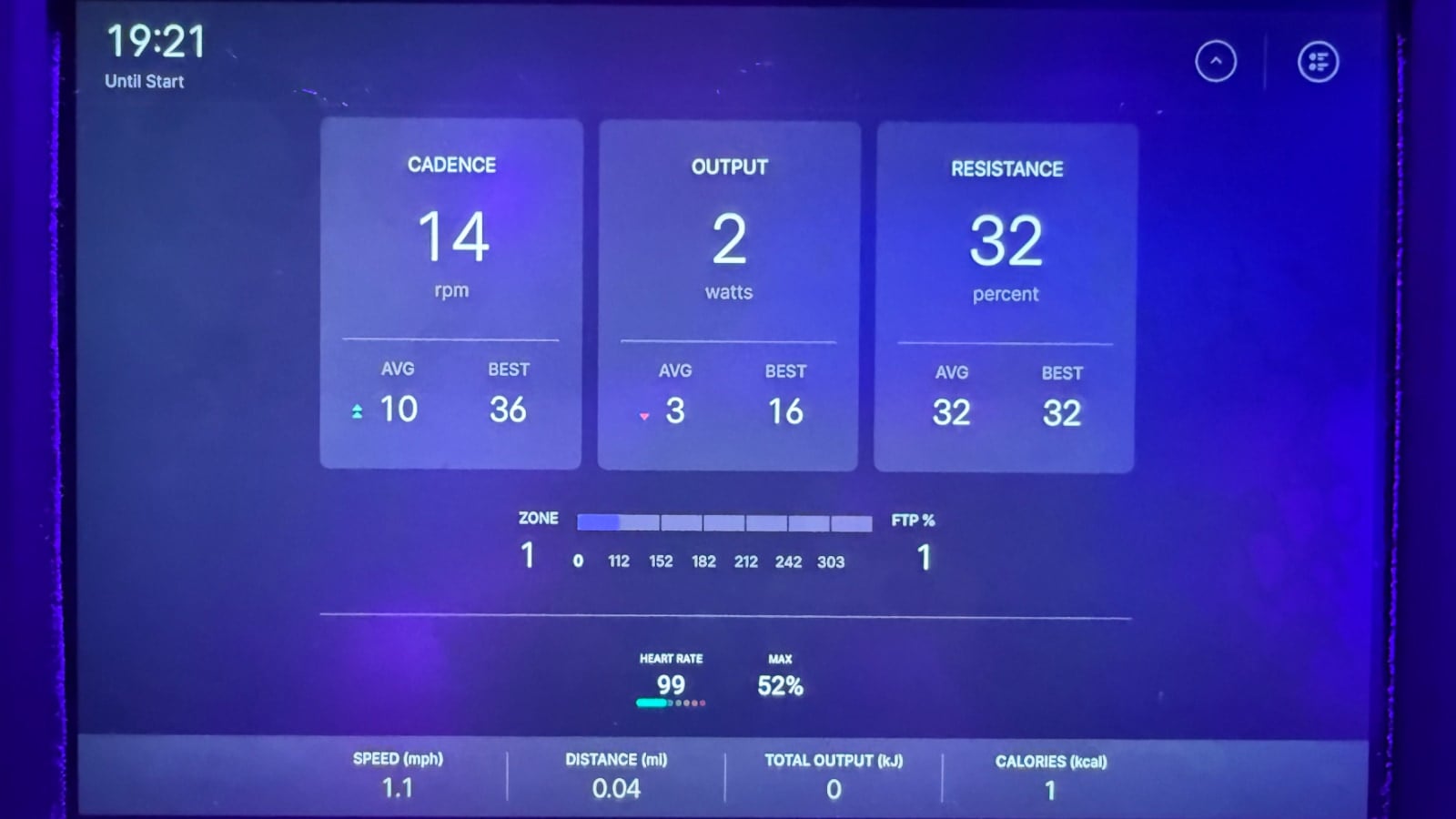
- Heart rate should appear on screen, usually in the bottom left.
- If you see “–” or no numbers, try re-pairing.
Special Note: Using Apple Watch
Apple Watch pairing needs the Peloton app on your phone and the “Heart Rate Monitor” feature activated. Open the app, start a workout, and follow on-screen instructions. Sometimes you’ll need to grant permissions in your phone’s settings.
Troubleshooting Pairing Issues
If your monitor doesn’t connect:
- Check battery: Low battery causes most failures.
- Restart both devices: Turn off and on your bike and monitor.
- Move closer: Stay within 3 feet for best signal.
- Remove old connections: Unpair from other devices like phones or tablets.
- Update firmware: Check for updates on your monitor.
If problems continue, try another monitor or contact support. Most issues are solved by restarting and checking Bluetooth.
Using The Peloton Heart Rate Band
The Peloton Heart Rate Band is designed for easy connection. It’s an optical band worn on your forearm.
- Charging: Use the included USB cable. A full charge lasts up to 6 hours.
- Wearing: Place on your forearm, not the wrist. Tighten until snug but not restrictive.
- Pairing: The band enters pairing mode when turned on. Follow the Bluetooth steps listed above.
The Peloton Band has LED lights to show status:
- Green: Connected
- Blue: Pairing
- Red: Low battery
This band works best for beginners. It’s comfortable and less fussy than chest straps.
Using Third-party Heart Rate Monitors
Many users prefer brands like Polar, Garmin, or Wahoo. These often offer advanced features.
- Polar H10: Very accurate, long battery life, waterproof.
- Garmin HRM-Pro: Sends data via Bluetooth and ANT+, tracks extra metrics like running dynamics.
- Wahoo TICKR: Lightweight, affordable, easy to pair.
The setup is nearly identical:
- Wear the device correctly.
- Activate Bluetooth.
- Open Peloton’s Bluetooth menu and select the monitor.
Some chest straps auto-connect when you start a workout. If you use ANT+ only, Peloton Bike+ supports it, but the original Bike does not.
Here’s a comparison of popular monitors:
| Monitor | Type | Battery Life | Price Range | Peloton Support |
|---|---|---|---|---|
| Peloton Heart Rate Band | Optical/Forearm | 6 hours | $90 | Full |
| Polar H10 | Chest Strap | 400 hours | $90 | Full |
| Garmin HRM-Pro | Chest Strap | 12 months (replaceable) | $130 | Full |
| Wahoo TICKR | Chest Strap | 500 hours | $50 | Full |

Understanding Heart Rate Zones On Peloton
Once your monitor is connected, Peloton shows your heart rate zones. These zones help you train smarter.
The zones are based on your maximum heart rate. Peloton usually calculates this as 220 minus your age. For example, if you’re 30, your max is about 190 bpm.
Zones:
- Zone 1: 50–60% (Warm up/cool down)
- Zone 2: 60–70% (Fat burning)
- Zone 3: 70–80% (Aerobic, endurance)
- Zone 4: 80–90% (Hard, performance)
- Zone 5: 90–100% (Maximum effort)
Peloton color-codes these zones and shows your live heart rate. Beginners often miss that you can adjust your max heart rate manually for more accurate zones.
Benefits Of Heart Rate Training On Peloton
Using heart rate data during your ride offers several advantages.
- Improved results: You train at the right intensity for your goals.
- Motivation: Seeing your heart rate change can push you to work harder.
- Safety: You avoid overtraining or pushing too far.
- Progress tracking: Compare workouts over time and see improvements.
A study from the Journal of Sports Science found that athletes who tracked heart rate improved endurance by 15% more than those who did not.
Common Mistakes When Setting Up Heart Rate Monitors
Even experienced riders make mistakes. Avoid these for a smooth experience.
- Not charging the monitor: Always check battery before workouts.
- Wearing the monitor incorrectly: Chest straps should be under the chest, not too loose. Optical bands need skin contact.
- Failing to activate pairing mode: Some monitors must be turned on or set to pair.
- Bluetooth conflicts: Unpair from other devices before connecting to Peloton.
- Ignoring software updates: Old firmware can cause bugs.
- Entering wrong settings: Double-check your age and max heart rate.
Most problems are solved by rechecking these points.
Advanced Tips For Heart Rate Monitor Setup
If you want more than basic setup, try these advanced tips.
- Dual connection: Some monitors (like Polar H10) connect to two devices at once. You can track data on your phone and Peloton.
- Data export: Use Peloton’s app to export heart rate data and analyze in apps like Strava or Garmin Connect.
- Custom zones: Adjust your max heart rate in settings for more personalized zones.
- Check signal strength: Bluetooth can drop if there are too many devices nearby. Limit interference.
Many riders miss the dual connection feature, which is helpful for those who want to record data on multiple platforms.
Comparing Heart Rate Monitor Brands For Peloton Users
Choosing the right brand makes a big difference. Here’s a direct comparison of top brands for Peloton users:
| Brand | Ease of Setup | Accuracy | Comfort | Extra Features |
|---|---|---|---|---|
| Peloton | Very Easy | Medium | High | LED Status, Rechargeable |
| Polar | Easy | High | Medium | Waterproof, Dual Bluetooth |
| Garmin | Easy | High | Medium | ANT+, Running Metrics |
| Wahoo | Easy | High | Medium | Affordable, Lightweight |
If you value comfort and a simple setup, Peloton’s band is ideal. For accuracy, Polar and Garmin are top choices.
Maintenance And Care For Your Heart Rate Monitor
To keep your monitor working well:
- Clean after each use: Sweat can cause damage. Wipe straps and bands with a damp cloth.
- Store properly: Keep in a cool, dry place. Avoid leaving in direct sunlight.
- Replace batteries: Chest straps often use coin batteries; replace every 6–12 months.
- Check for updates: Firmware updates improve performance.
Neglecting care is a common mistake. Even expensive monitors fail quickly without proper cleaning.
Using Heart Rate Data For Smarter Training
Once you’re connected, use your data wisely.
- Set goals: Decide what zone to train in based on your fitness target.
- Analyze after workouts: Look at average and peak heart rates. Are you improving?
- Adjust intensity: If you stay in the same zone every ride, try mixing it up for better results.
- Share data: Peloton lets you share heart rate stats with friends or coaches.
Many beginners forget to review their data after workouts, missing key insights.
Integrating Heart Rate Monitor With Peloton App
You can use your monitor with Peloton’s mobile app for off-bike workouts.
- Open the Peloton app on your phone or tablet.
- Go to “More” > “Heart Rate Monitor.”
- Activate your monitor and pair as usual.
This works for running, strength, or yoga classes. You get the same zone tracking as the bike.
Troubleshooting Common Heart Rate Monitor Problems
Sometimes things go wrong. Here’s how to fix the most common issues:
- Monitor not detected: Restart both devices, check battery, move closer.
- Heart rate not showing: Re-pair the monitor, check skin contact.
- Dropouts during workout: Move away from other Bluetooth devices, check battery, tighten strap.
- Wrong heart rate displayed: Adjust max heart rate in settings, check if monitor is paired to another device.
If you continue to have problems, try resetting the monitor or contacting the manufacturer.
Heart Rate Monitor Setup For Multiple Users
If your household has more than one Peloton user:
- Each user should have their own monitor.
- Pair monitors separately for each profile.
- Unpair monitors after each session to avoid mix-ups.
- For shared monitors, re-pair before every ride.
Beginners often forget to unpair after workouts, leading to connection problems for the next user.
Safety And Privacy Considerations
Heart rate monitors collect personal data. Keep these points in mind:
- Data privacy: Only share your stats with trusted platforms.
- Secure connections: Don’t pair in public places where others may access your device.
- Health alerts: Some monitors can warn you about dangerous heart rates. Pay attention and stop if you feel unwell.
Peloton’s privacy settings let you control who sees your heart rate data.
Frequently Asked Questions
How Do I Connect A Chest Strap Heart Rate Monitor To My Peloton Bike?
Wear the chest strap snugly below your chest. Activate Bluetooth on both the monitor and Peloton Bike. Go to “Settings,” select “Bluetooth Devices,” and choose your monitor from the list. It should show as “Connected” within a few seconds. Start a ride to confirm your heart rate displays on the screen.
Can I Use My Apple Watch As A Heart Rate Monitor For Peloton?
Yes, but you need the Peloton app on your iPhone. Open the app, start a workout, and follow the instructions to pair your Apple Watch. You may need to enable permissions in your phone settings. The Apple Watch will send heart rate data to Peloton during the workout.
Why Isn’t My Heart Rate Showing On The Peloton Screen?
Common reasons include low battery, poor skin contact, Bluetooth interference, or pairing to another device. Try restarting both devices, tightening the strap, and re-pairing. Make sure the monitor is not connected to your phone or tablet at the same time.
What Is The Difference Between Bluetooth And Ant+ Monitors?
Bluetooth monitors connect easily to most devices, including Peloton Bikes. ANT+ is another wireless technology, often found in advanced fitness monitors. Peloton Bike+ supports ANT+, but the original Bike mainly uses Bluetooth. Choose a monitor that matches your bike’s capabilities.
How Can I Clean And Care For My Heart Rate Monitor?
After each workout, wipe the strap and sensors with a damp cloth. For chest straps, remove the sensor before washing. Store the monitor in a cool, dry place. Replace batteries as needed. Regular care prevents sensor problems and keeps your monitor working longer.
—
Connecting a heart rate monitor to your Peloton Bike opens a new world of training possibilities. With clear setup steps, careful device selection, and smart use of heart rate zones, you can personalize your workouts and see real progress. Avoid common mistakes, maintain your device, and leverage advanced features for the best experience. If you’re ready to take your Peloton rides to the next level, start by connecting your monitor and watch your fitness improve day by day. For more information on heart rate training, visit the American Heart Association.

