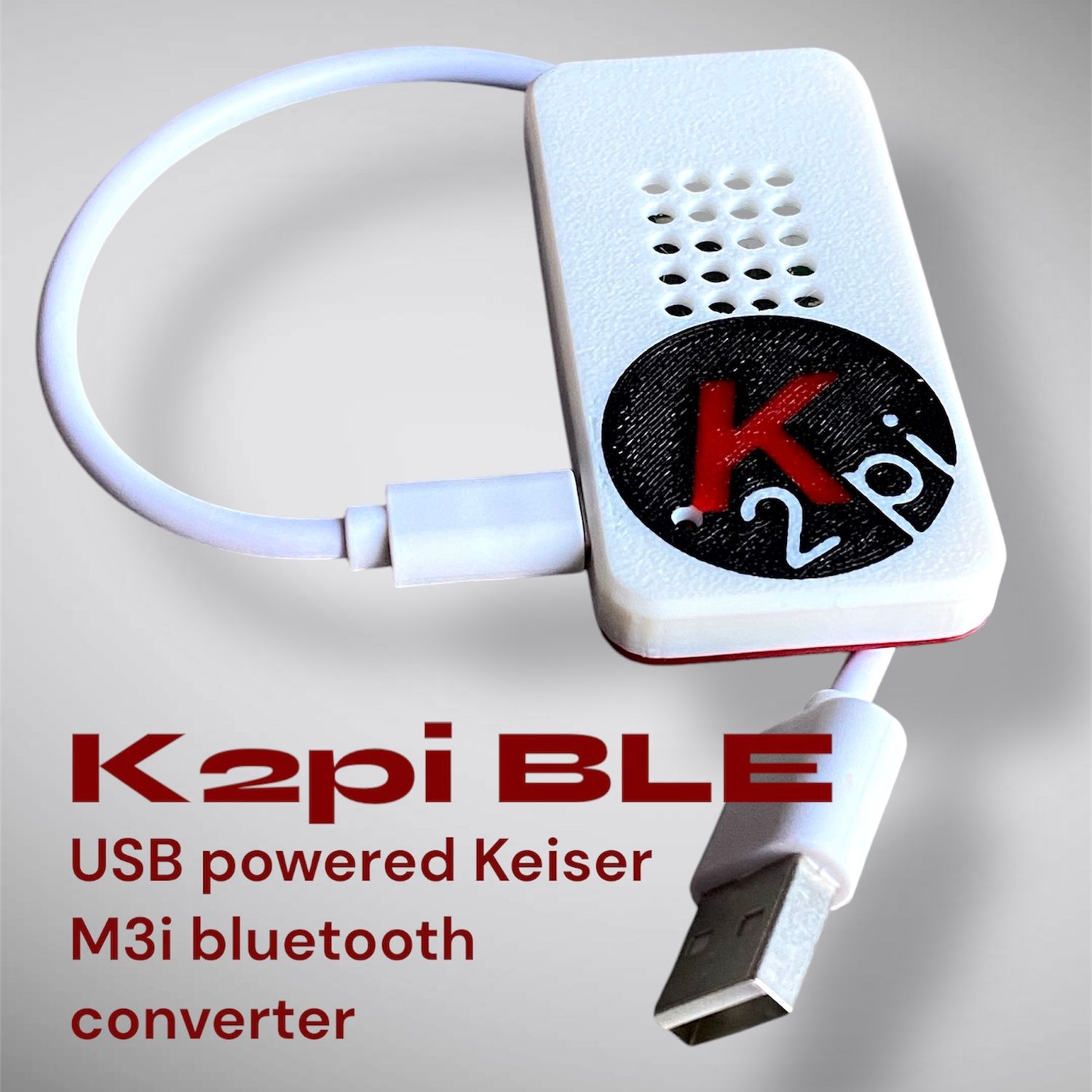
Staying fit at home is now easier, thanks to smart exercise equipment like the Keiser M3I indoor bike. This popular stationary bike is not just about smooth pedaling and solid build; it also stands out for its advanced Bluetooth connectivity. This feature lets you connect the bike to your favorite fitness apps, track your performance, and even join virtual cycling classes. But while the technology is powerful, many users feel confused when trying to set up the Bluetooth connection for the first time.
If you own a Keiser M3I or are thinking about buying one, understanding how to use its Bluetooth features will help you get more from every ride. This guide will walk you through everything you need to know about Keiser M3I Bluetooth connection—from pairing your devices and choosing the right apps, to fixing common problems and maximizing your workout data. By the end, you’ll feel confident using your Keiser M3I as a smart, connected fitness tool.
Why Bluetooth Connectivity Matters For Keiser M3i
The Keiser M3I was one of the first indoor bikes to offer Bluetooth integration as a standard feature. But why does this matter? The answer is simple: data and motivation. Connecting your bike to apps lets you track every ride, set goals, and even compete with friends. It also unlocks features like:
- Real-time performance tracking (cadence, power, heart rate)
- Automatic workout logging
- Virtual group rides
- Interactive coaching and structured workouts
- Syncing with fitness platforms like Zwift, Peloton Digital, and Strava
Many users find that watching their stats live or seeing their progress over time keeps them motivated to ride more often. Bluetooth connectivity turns the Keiser M3I from a simple exercise bike into a full digital training system.
How Bluetooth Works On The Keiser M3i
The Keiser M3I uses a Bluetooth 4.0 (BLE) module built into the bike’s console. This low-energy protocol is widely supported by smartphones, tablets, and fitness devices. When you pedal, the console measures your output (cadence, power, speed, etc.) and broadcasts this data wirelessly.
Key facts about the M3I Bluetooth system:
- Range: Up to 30 feet (9 meters) in open spaces
- Power: The console is powered by two AA batteries
- Compatibility: Works with both iOS and Android devices
- Simultaneous connections: Can connect to multiple apps/devices at once, but some apps may restrict this
The M3I does not require a separate Bluetooth dongle or module—everything is built-in. All you need is a compatible device and a fitness app that supports Bluetooth Smart (BLE).

Preparing Your Keiser M3i For Bluetooth Pairing
Before you try to connect your Keiser M3I, it’s smart to prepare both your bike and your phone or tablet. This avoids common frustration and saves time.
- Check the Batteries: The M3I console runs on AA batteries. If they are weak, Bluetooth may not work reliably. Replace them if you notice a dim screen or dropped connections.
- Update Your Device: Make sure your smartphone or tablet’s operating system is up to date. Older iOS or Android versions may have Bluetooth bugs.
- Enable Bluetooth: On your device, turn on Bluetooth in the settings menu. Make sure it’s discoverable.
- Install Fitness Apps: Download and install the app(s) you plan to use, such as Keiser M Series, Zwift, Peloton Digital, or TrainerRoad.
Once you’re set up, you’re ready to connect.
Step-by-step: Connecting Keiser M3i To Fitness Apps
Pairing your Keiser M3I with an app is usually fast, but the exact steps depend on the app you choose. Here’s how to connect to the most popular options.
Keiser M Series App
The Keiser M Series app is the official companion for the M3I. It’s simple, free, and available for both iOS and Android.
- Open the Keiser M Series app.
- Start pedaling on your bike to “wake up” the console.
- Tap Connect Bike in the app.
- Wait for the app to detect your M3I. It will show as “Keiser M3I” or similar.
- Tap the bike name to connect. You’ll see live stats if successful.
This app lets you record rides, view summaries, export data, and share workouts to Strava or email.
Zwift
Zwift is a virtual cycling world where you can ride with others online. The M3I connects via Bluetooth as a power source.
- Open Zwift on your device (iPad, iPhone, Android, or computer with Bluetooth).
- Start pedaling to activate the bike.
- On the Zwift pairing screen, select Power Source.
- Wait for Zwift to find your Keiser M3I. Choose it from the list.
- Optionally pair as a Cadence sensor and connect a heart rate monitor.
Zwift will now use your M3I’s power and cadence data for your virtual avatar.
Peloton Digital
Peloton’s app supports Bluetooth sensors but does not display all Keiser data natively. You can still use the app alongside the Keiser M Series app for full stats.
- Start a ride in the Peloton Digital app.
- Pair your Keiser M3I in the Keiser M Series app as usual.
- Use both apps at the same time. View live cadence and power on your phone/tablet while enjoying Peloton’s classes.
Trainerroad
TrainerRoad is focused on structured, power-based cycling workouts. The Keiser M3I connects as a power and cadence source.
- Open TrainerRoad on your device.
- Go to the Devices tab.
- Start pedaling to make the M3I discoverable.
- Tap to add the Keiser as a Power and Cadence source.
TrainerRoad will now record your performance and guide you through workouts.
Comparison: Keiser M Series Vs. Third-party Apps
Many riders ask whether to use Keiser’s own app or a third-party app like Zwift. Here’s a quick comparison to help you decide:
| Feature | Keiser M Series App | Zwift | Peloton Digital |
|---|---|---|---|
| Live stats | Yes | Yes | Partial |
| Workout history | Yes | Yes | Yes |
| Virtual group rides | No | Yes | No |
| Structured training plans | No | Yes | Yes |
| Export to Strava | Yes | Yes | No |
| Bluetooth compatibility | Excellent | Good | Average |
If you want simple ride tracking and easy sharing, Keiser’s app is enough. For interactive group rides and virtual worlds, Zwift is the top choice.
Common Bluetooth Pairing Problems And Solutions
Bluetooth is convenient, but it’s not perfect. Many users face issues such as failed connections, data dropouts, or the bike not showing up in their app. Here are the most common issues and how to fix them:
1. The Bike Doesn’t Appear In The App
- Check the batteries in your console—they may be weak.
- Make sure you are pedaling to “wake up” the Bluetooth signal.
- Turn Bluetooth off and on again on your device.
- Make sure no other app is already connected to the bike (Bluetooth can only pair with one app at a time in some cases).
2. Connection Drops During Ride
- Stay within 10 feet of the bike for a strong signal.
- Move away from Wi-Fi routers or other wireless devices that may interfere.
- Replace the console batteries if they’re over 6 months old.
3. Data Isn’t Updating
- Restart both your device and the Keiser M Series console.
- Try a different app to see if the problem is with your main app.
- Update the app to the latest version.
4. App Shows Wrong Data
- Make sure you’ve selected the Keiser M3I as the power/cadence source, not a different sensor.
- Check for firmware updates on your bike console.
If you still have problems, Keiser’s support team can often help. You can find more help at the official Keiser support page.
Tips For The Best Bluetooth Connection Experience
Even if your Keiser M3I works well out of the box, a few small changes can make your Bluetooth experience smoother and more reliable.
- Change batteries regularly—don’t wait for them to die.
- Keep your phone/tablet close to the console (within 3–6 feet).
- Close other Bluetooth apps before starting your workout.
- Update your apps and phone OS every few months.
- If you ride in a group class, ask others to connect one at a time to avoid interference.
One non-obvious tip: The Keiser M3I can connect to more than one app at once, but only if both apps are designed to share Bluetooth data. Some apps “lock” the signal, so experiment to see what works for your setup.
Understanding What Data The Keiser M3i Sends
The Keiser M3I console broadcasts several types of data over Bluetooth, but not every app will display them all. Here’s what the bike actually sends:
- Cadence (RPM): How fast you’re pedaling
- Power (Watts): Your actual effort, measured directly
- Heart rate: Only if you pair an external Bluetooth heart rate monitor
- Speed: Calculated based on cadence and resistance
- Distance: Also calculated, but not as accurate as on-road bikes
- Gear/Resistance level: The gear you’ve selected (1–24)
Some advanced fitness apps display only power and cadence, while others (like Keiser’s own app) show everything. If you want to track heart rate, you’ll need a separate Bluetooth heart rate monitor and pair it with your app.
Table: What Data Each App Receives From Keiser M3i
Here’s a quick guide to what each popular app displays when connected to your Keiser M3I:
| App | Cadence (RPM) | Power (Watts) | Heart Rate | Gear/Resistance | Speed | Distance |
|---|---|---|---|---|---|---|
| Keiser M Series | Yes | Yes | Yes* | Yes | Yes | Yes |
| Zwift | Yes | Yes | No** | No | Yes | Yes |
| TrainerRoad | Yes | Yes | Yes* | No | No | No |
| Peloton Digital | Partial | No | No | No | No | No |
*Requires a separate Bluetooth heart rate monitor paired to your app
**Zwift supports heart rate if paired with a compatible monitor
Advanced: Using Keiser M3i With Multiple Devices Or Apps
Many advanced users want to record data on two apps at the same time, or share their ride with a friend or coach. The Keiser M3I console supports multiple Bluetooth connections, but there are limits:
- Most fitness apps “lock” the Bluetooth channel, so only one app can read the bike at a time.
- Some apps, like Zwift and the Keiser M Series app, can both connect if run on different devices (for example, Zwift on an iPad, Keiser app on your phone).
- If you need to connect to more than one app, pair one first, then the other. If you get a connection error, close both apps and try again.
A practical tip: If you’re sharing the bike with a family member or roommate, always disconnect your app after your ride, so the next person can pair without issues.
Firmware Updates: When And How To Update Your Keiser M3i
Keiser sometimes releases firmware updates for the M3I console. These updates can improve Bluetooth performance, add new features, or fix bugs. Most users never need to update, but if you’re having issues, it’s worth checking.
- Visit the Keiser support website to see if a new firmware is available.
- Updates may require a special Keiser tool or service technician.
- If your bike is new (2020 or later), it likely has the latest firmware.
It’s rare for firmware to cause Bluetooth problems, but keeping your console up to date can prevent surprises.
Is Your Phone Or Tablet Compatible?
Not every device supports Bluetooth Smart (BLE). If you’re using an older phone or tablet, check these requirements:
- IOS devices: IPhone 5s or later, iPad 3rd gen or newer, iOS 10 or later
- Android devices: Android 5.0 (Lollipop) or later, with BLE support
Most devices made after 2015 will work fine. If you have trouble, try a newer device or borrow one to test.
Security And Privacy Considerations
Bluetooth connections are generally safe, but it’s smart to be aware of privacy:
- The Keiser M3I broadcasts data in a short range—others cannot access your data from far away.
- Fitness apps may upload your ride data to the cloud. Check the app’s privacy settings and policy.
- Always use official apps from the Google Play or Apple App Store to avoid security risks.
A non-obvious insight: If you’re using a shared or public device for your workouts, remember to log out of your account after each session.
Practical Examples: Using Bluetooth In Real Life
Let’s look at how different users benefit from the Keiser M3I’s Bluetooth feature:
- Home user: Linda connects her M3I to the Keiser app on her iPhone. She tracks her rides, exports the data to Strava, and sees her progress every month.
- Virtual racer: Mike uses Zwift on his iPad. The Bluetooth connection lets him race friends in virtual worlds, and his real-world effort translates into his avatar’s speed.
- Group class fan: Sarah loves Peloton Digital classes. She keeps the Keiser app open on her Android tablet for accurate cadence while following the Peloton instructor on her TV.
Each user type benefits from Bluetooth, but in different ways. Your setup can be as simple or advanced as you like.

Table: Quick Troubleshooting Steps
Use this reference if you have issues during setup or riding:
| Problem | Likely Cause | Fix |
|---|---|---|
| Bike not found | Console asleep or dead batteries | Start pedaling, replace batteries |
| Connection drops | Signal interference | Move closer, turn off other devices |
| Data not updating | App bug or old firmware | Restart app, check for updates |
| Wrong stats | Wrong sensor selected | Select Keiser M3I in app settings |
Frequently Asked Questions
Can I Connect The Keiser M3i To More Than One App At The Same Time?
Yes, the Keiser M3I supports multiple Bluetooth connections, but not all apps allow it. For example, you can use Zwift on your iPad and the Keiser M Series app on your phone at the same time. However, some apps “lock” the Bluetooth connection, so only one can connect.
If you have problems, close all apps and connect one at a time.
Does The Keiser M3i Support Ant+ Devices?
No, the standard Keiser M3I only broadcasts via Bluetooth Smart (BLE). It does not support ANT+ sensors or devices. If you need ANT+ compatibility (for example, for a Garmin head unit), you’ll need a third-party bridge device, but this is not officially supported.
Why Does My Keiser M3i Keep Disconnecting From Bluetooth?
The most common reasons are weak batteries in the console, too much distance between device and bike, or wireless interference. Keep your device within 6 feet, replace batteries every 6 months, and avoid using Wi-Fi or other Bluetooth devices nearby during workouts.
What Is The Best App To Use With The Keiser M3i?
The best app depends on your goals. For simple ride tracking, the Keiser M Series app is easiest. For virtual rides and races, Zwift is most popular. If you enjoy instructor-led classes, use the Peloton Digital app. Some users like to use two apps at once for maximum data.
How Do I Update The Firmware On My Keiser M3i?
Firmware updates are rare but can be done with help from Keiser support or a certified technician. Check the Keiser website for update instructions. Most users never need to update firmware unless they experience Bluetooth issues or are instructed by support.
Getting the most out of your Keiser M3I Bluetooth connection transforms your indoor cycling from a simple workout into a smart, connected experience. By following this guide, you’ll avoid common pitfalls, enjoy better data, and stay motivated on your fitness journey. If you ever get stuck, remember that help is always available from Keiser’s support team or official resources like Keiser Support. Your bike is ready—now it’s time to ride smarter.