
Resetting a fitness tracker can seem confusing, especially with so many brands and models on the market. Maybe your device is stuck, not tracking your steps, or you want to erase your data before selling it. No matter the reason, knowing how to reset a fitness tracker the right way is important for keeping it working well or protecting your privacy.
This guide explains the different ways to reset popular fitness trackers, what you should do before and after resetting, and answers common questions most people have.
Why Reset A Fitness Tracker?
Fitness trackers are small, powerful devices. Like all technology, they sometimes run into problems. Understanding why you might need to reset your device will help you decide which method is best.
- Fixing Software Issues: If your tracker freezes, lags, or apps crash, a reset often solves the problem.
- Clearing Personal Data: Before giving away or selling your tracker, a reset removes your private information.
- Sync Problems: If your device doesn’t connect to your phone or computer, resetting can restore the connection.
- Battery Life Issues: Sometimes, a reset can help if your battery drains too fast because of a software bug.
- Starting Fresh: If you want to erase all old data and start tracking from zero, a reset is the fastest way.
Most people only reset their tracker when there’s a problem. But some experts recommend a reset every few months to keep your device running smoothly.
Types Of Resets: Soft Reset Vs. Hard Reset
Not all resets are the same. Understanding the difference helps you choose the right method for your situation.
Soft Reset
A soft reset means restarting the device without erasing any data. This is like rebooting a computer. It’s useful for minor bugs and is safe to use often.
- Best for: Freezing, slow response, minor glitches.
- Data loss: None. Your steps, sleep, and other data are safe.
Hard Reset (factory Reset)
A hard reset or factory reset erases all data and settings. The device returns to its original state, like when you first bought it.
- Best for: Selling, giving away, or fixing serious problems.
- Data loss: All data is deleted from the device. Make sure to back up important information first.
Some trackers also have a “Settings Reset” that keeps your data but returns all settings to default. Always check your user manual to understand the reset options.
Preparing To Reset: What To Do First
Before you reset your fitness tracker, take a few steps to avoid losing important data or making mistakes.
1. Sync Your Data
Connect your tracker to your app or cloud service and make sure all your recent steps, workouts, and sleep data are uploaded. Once you reset, unsynced data is lost forever.
2. Charge Your Device
A low battery can interrupt the reset process. Charge the tracker to at least 50% before starting.
3. Read The Manual
Different brands use different reset methods. Read your user guide or visit the official website for model-specific instructions.
4. Unpair From Your Phone
If you plan to give away or sell the tracker, unpair it from your phone or account. This prevents problems for the next user.
5. Backup Custom Settings
Some trackers let you save custom watch faces, alarms, or profiles. Write down or screenshot these settings if you want to restore them later.
Many beginners forget to sync or back up their data. This is a common mistake that leads to lost progress.
How To Reset Popular Fitness Trackers
Different brands and models use unique reset methods. Here is a breakdown of how to reset the most popular fitness trackers.
Fitbit
Fitbit is one of the world’s most popular fitness brands. Reset instructions can be different for each model.
Soft Reset (restart)
- For most models:
- Connect the tracker to the charger.
- Press and hold the button(s) for 10 seconds.
- Release when you see the Fitbit logo.
- For Fitbit Inspire 2, Charge 4, Luxe, and similar:
- Press and hold the button for 10 seconds.
- Release the button when the smiley face or Fitbit logo appears.
Hard Reset (factory Reset)
- For newer models (Versa, Sense, Charge 5, Inspire 3):
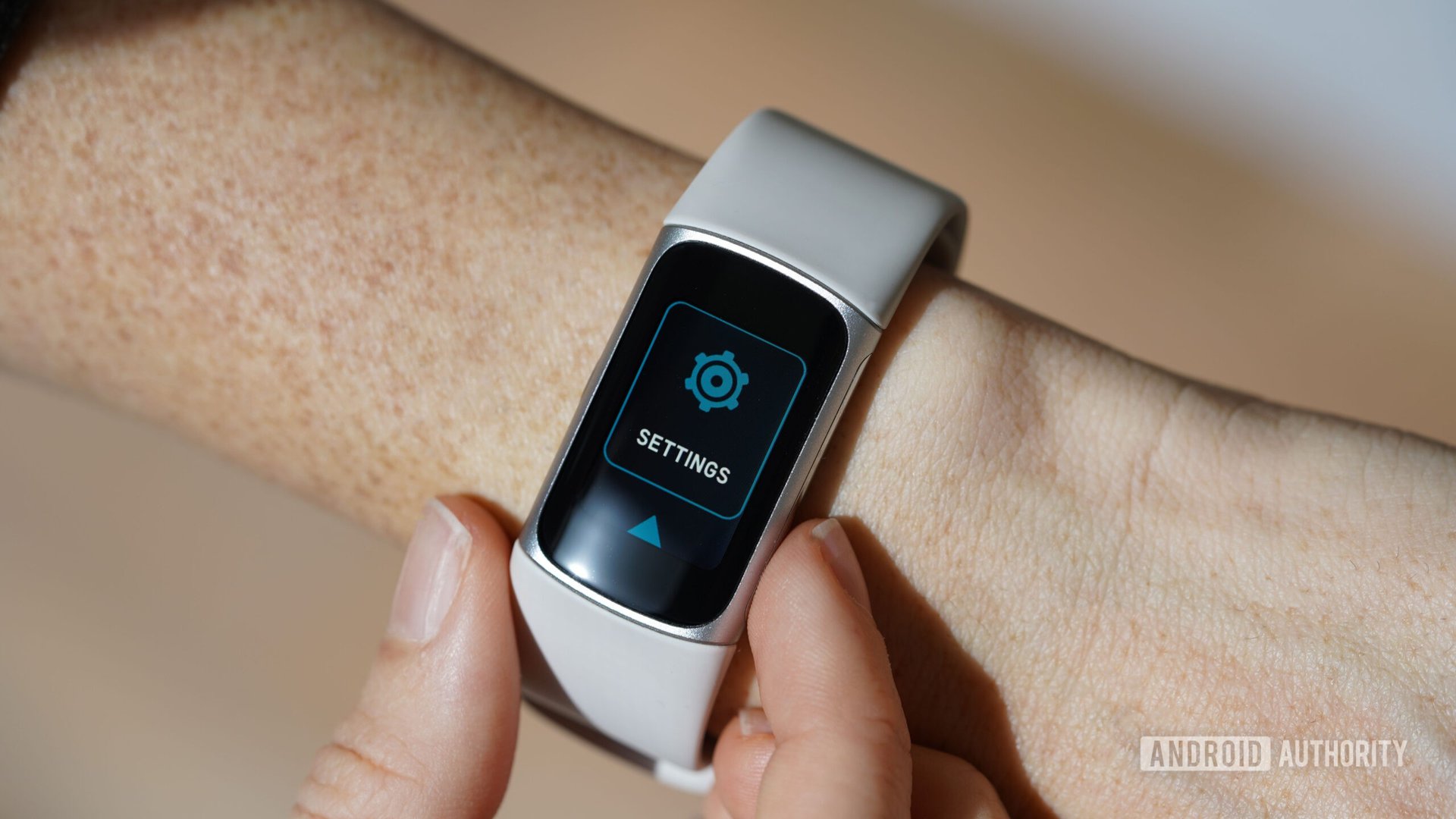
- Go to “Settings” on the tracker.
- Scroll to “About” or “Device Info.”
- Select “Factory Reset” or “Clear User Data.”
- Confirm when prompted.
- For older models:
Some do not support true factory reset. You may need to remove the device from your Fitbit account and erase it in the app.
Tip: The Fitbit app has a “Remove Device” option under your profile. This is useful for unpairing before resale.
Garmin
Garmin trackers have both soft and hard reset options.
Soft Reset
- Hold the power button until the device turns off.
- Wait a few seconds, then turn it back on.
Hard Reset (factory Reset)
- Go to the “Settings” menu.
- Scroll to “System.”
- Select “Reset” > “Delete Data and Reset Settings.”
- Confirm your choice.
Note: Some models (like Vivosmart and Forerunner) use slightly different menu names.
Xiaomi Mi Band
Mi Band is popular for its low price and simple design.
Soft Reset
- Remove the tracker from your wrist.
- Let the battery drain until it turns off.
- Charge it again to restart.
Hard Reset
There is no direct factory reset on the device. You must use the app.
- Open the Mi Fit app.
- Unpair the band from your account.
- The device will erase all data and return to setup mode.
Samsung Galaxy Fit
Samsung’s fitness trackers use the Galaxy Wearable app.
Soft Reset
- Press and hold the Home key until the device restarts.
Hard Reset
- On the tracker:
- Go to “Settings.”
- Scroll to “About” > “Reset.”
- Confirm.
- In the Galaxy Wearable app:
- Open the app.
- Tap “About band” > “Reset band.”
- Confirm.
Apple Watch
Though not always called a fitness tracker, the Apple Watch has full activity tracking.
Soft Reset
- Press and hold the Side button until you see the power off slider.
- Drag the slider to turn off.
- Press and hold the Side button to turn it on again.
Hard Reset (erase All Content)
- On your watch:
- Go to “Settings” > “General” > “Reset.”
- Tap “Erase All Content and Settings.”
- Enter your passcode if needed.
- In the Watch app (iPhone):
- Open the app.
- Go to “General” > “Reset” > “Erase Apple Watch Content and Settings.”
Important: Unpairing your Apple Watch from your iPhone automatically erases it.
Other Brands (amazfit, Huawei, Honor, Etc.)
Most other brands follow similar steps. The main idea is to look for the “Reset” or “Factory Reset” option in the device’s settings or companion app.
Example:
- On an Amazfit: Go to “Settings” > “System” > “Factory Reset.”
- On a Huawei Band: Go to “Settings” > “System” > “Reset.”
Extra Tip:
Always check for software updates first. Sometimes, an update can fix problems without needing a reset.

Comparison: Reset Options Across Major Brands
To make it easy, here is a quick comparison of reset methods for popular brands.
| Brand | Soft Reset | Hard Reset | Data Loss |
|---|---|---|---|
| Fitbit | Hold button(s) | Settings > Factory Reset | Yes (Hard Reset) |
| Garmin | Power Off/On | Settings > System > Reset | Yes (Hard Reset) |
| Mi Band | Battery Drain & Charge | Unpair in App | Yes (Unpair) |
| Samsung | Hold Home Key | Settings > About > Reset | Yes (Reset) |
| Apple Watch | Power Off/On | Settings > Reset > Erase | Yes (Erase) |
Common Mistakes When Resetting A Fitness Tracker
Even experienced users sometimes make errors when resetting their device. Avoid these problems to keep your data safe and your tracker working well.
1. Not Syncing Data First
If you reset before syncing, you lose any steps, workouts, or sleep data not yet uploaded. Always check the app to confirm your latest activity is saved.
2. Forgetting To Charge
A reset can drain the battery. If your tracker turns off halfway through, it may not start again until charged.
3. Not Unpairing From Account
Especially with Fitbit, Apple, and Samsung, forgetting to unpair from your account can cause trouble for the next user. It may also lock the device, blocking new owners.
4. Not Backing Up Custom Settings
Alarms, reminders, and custom watch faces can be lost. Take screenshots or notes if you want to restore these later.
5. Using The Wrong Reset Method
Sometimes, users do a hard reset when a soft reset was enough—or the other way around. Check your device’s manual or official website if you’re not sure.
What Happens After A Reset?
Once you’ve reset your fitness tracker, what comes next? Here’s what to expect:
- Device restarts to setup mode: You will need to pair it again with your phone or app.
- All data is erased (hard reset): Steps, sleep, and custom settings are deleted from the device, but not from your synced app or cloud account.
- You can set up as new: Enter your profile, preferences, and connect to your account.
- Resale or gifting is safe: Personal data is removed, and the device is ready for a new user.
If you plan to use the tracker again, follow the setup process just like you did when you bought it.
Advanced Tips For Resetting Fitness Trackers
There are some less obvious points most beginners miss. These can make your reset process smoother and safer.
1. Reset Via App For Extra Security
Some brands (Fitbit, Mi Band, Samsung) allow you to reset directly from their mobile app. This is often more reliable, as the app can confirm the device is wiped and unpaired from your account.
2. Consider Privacy Settings
Even after a factory reset, your data may still be stored on the cloud or app. Log in to your account (like Fitbit. com or Garmin Connect) and check for any personal info. Delete old devices or data if you’re concerned about privacy.
3. Use The Latest Firmware
If your device has been glitchy, update the firmware before resetting. Sometimes, a software update fixes bugs without needing a full reset.
4. Factory Reset As A Last Resort
Try a soft reset or update first. Hard resets should be your last option, since they erase all data.
5. Resetting Doesn’t Fix Hardware Problems
If your screen is cracked, your battery is swollen, or the buttons don’t work, a reset won’t help. Contact customer support or a repair shop for hardware issues.
Table: When To Use Each Reset Type
This table helps you decide which reset option fits your problem.
| Problem | Soft Reset | Hard Reset |
|---|---|---|
| Tracker is frozen | Yes | No |
| Device won’t sync | Yes | Maybe |
| Forgotten PIN/Password | No | Yes |
| Preparing for sale | No | Yes |
| Custom settings lost | No | Yes |
| Minor glitch | Yes | No |
How To Reset A Fitness Tracker Without Buttons
Some fitness trackers have no physical buttons, which can make resetting tricky. Here’s what to do:
- Use the App: Most trackers with no buttons are controlled by a mobile app. Look for a “Reset” or “Unpair” option in the app’s device settings.
- Touchscreen Menus: Some models allow you to swipe through menus and select “Settings” > “Reset.”
- Charging Dock Method: For certain brands, placing the device on the charging dock and holding a touch area for 10-15 seconds will trigger a reset.
- Contact Support: If you can’t find a reset option, check the official support website or contact the brand’s help center.
Example: The Xiaomi Mi Band series has no buttons, so all resets are done through the app.
Data Security And Privacy After Reset
A common concern is whether your data is really gone after a reset. Here’s what you need to know:
- Device Data: A hard reset erases everything stored on the tracker itself.
- Cloud Data: Data already synced to your account (like Fitbit or Garmin Connect) remains in the cloud unless you delete it manually.
- Account Info: If you’re selling or giving away the tracker, log out of your account and remove the device from your profile in the app or website.
Non-obvious Insight: Even after erasing your device, some Bluetooth pairing info may remain on your phone. Go to your phone’s Bluetooth settings and “Forget” the tracker to fully disconnect.
What To Do If A Reset Doesn’t Work
Sometimes, even after following all the steps, your fitness tracker won’t reset. Here’s what you can try:
- Try Again: Some devices need the reset process repeated, especially if the battery is low.
- Check for Updates: Update the app and device firmware before trying again.
- Use a Different Method: If resetting on the device fails, try the app, or vice versa.
- Contact Support: If nothing works, reach out to the brand’s customer service. They can guide you or arrange for a replacement if the device is still under warranty.
Extra: Resetting For Sports Watches And Advanced Trackers
Some advanced sports watches (like Garmin Fenix or Suunto) have extra options:
- Reset Activity Data Only: Keeps your settings, but erases activity logs.
- Reset User Profile: Erases your name, age, and other profile data.
- Full Factory Reset: Wipes everything.
Always choose the option that fits your needs. For resale, use the “Full Factory Reset. ”
External Resource
For more in-depth guides on resetting wearables, see the official Fitbit Support page.

Frequently Asked Questions
How Often Should I Reset My Fitness Tracker?
You usually only need to reset your fitness tracker if you have a problem, like freezing or syncing issues. Some people do a soft reset every few months as maintenance, but regular resets are not required for most users.
Will I Lose My Data If I Reset My Fitness Tracker?
A soft reset does not erase your data. A hard reset (factory reset) deletes all data stored on the device, but data already synced to your app or cloud account will remain unless you delete it separately.
What Should I Do If My Fitness Tracker Won’t Turn On After Resetting?
First, make sure your device is charged. Plug it into the charger for at least 30 minutes. If it still doesn’t turn on, try another reset or contact customer support for help.
Can I Reset My Fitness Tracker If I Forgot My Password Or Pin?
Yes, most trackers allow you to reset the device even if you forgot your password or PIN. A factory reset will erase the lock, but you will need to set up the device from scratch after.
Is It Safe To Buy A Used Fitness Tracker That Has Been Reset?
Yes, as long as the device has been factory reset and unpaired from the previous owner’s account, it is safe to use. Set it up with your own account to start tracking your activity.
Resetting a fitness tracker may seem technical at first, but with the right steps, it’s a simple way to fix problems or protect your privacy. Always remember to sync and back up your data before starting, and check your manual or official support site for model-specific instructions.
With this guide, you can confidently reset any fitness tracker and keep your health data under control.

