
Smartwatches have become more than just digital watches. Today, they serve as health monitors, mini smartphones, and personal assistants—all on your wrist. But have you ever wondered how your smartwatch sends steps, heart rate, sleep data, and messages to your phone or the cloud? This process, called data syncing, is the invisible connection that makes smartwatches truly “smart.” Understanding how smartwatches sync data helps you get the most from your device, keep your information safe, and solve common problems.
Let’s explore in detail how smartwatches sync data, what technologies they use, what happens behind the scenes, and what you should know as a user. We’ll also cover common issues, ways to improve syncing, privacy concerns, and answer questions that many beginners have.
By the end, you’ll have a solid grasp of how your smartwatch and smartphone (or computer) talk to each other.
What Is Data Syncing In Smartwatches?
Data syncing means exchanging information between your smartwatch and another device, usually a smartphone or a cloud service. The goal is to keep your data—like steps, notifications, or settings—up to date on all devices. For example, when you check your phone, you see the same fitness stats that your watch recorded during your morning run. Syncing also lets your watch display new notifications, calendar events, or weather updates.
Many users think syncing happens only when you open an app, but most smartwatches sync data in the background, often in real time. This seamless connection depends on several technologies and systems working together.
How Do Smartwatches Connect To Other Devices?
Before data can sync, your smartwatch needs a way to communicate. The most common technologies are Bluetooth, Wi-Fi, and sometimes cellular networks.
Bluetooth: The Default Connection
Almost every smartwatch uses Bluetooth for syncing. Bluetooth is a short-range wireless technology that connects your watch to your smartphone. It’s energy-efficient, making it ideal for devices with small batteries.
When you first set up your smartwatch, you usually pair it with your phone using Bluetooth. After pairing, data can move back and forth automatically. For example, when you get a WhatsApp message, your phone sends it instantly to your watch.
How Bluetooth Syncing Works
- Pairing: You approve the connection on both devices, creating a secure link.
- Data Transfer: The phone and watch exchange small packets of data. This can include steps, messages, or even software updates.
- Security: Data is encrypted to keep your information safe from others nearby.
Bluetooth has a range of about 10 meters (33 feet). If you leave your phone in another room, syncing will pause until you’re back in range.
Wi-fi: For Bigger Data And Longer Range
Some smartwatches also include Wi-Fi. This allows the watch to connect directly to your home or office network. Wi-Fi is faster than Bluetooth and works at longer distances—anywhere the network reaches.
Wi-Fi is useful for tasks that need to transfer larger files, like music downloads, app updates, or photo syncing. It also helps when your phone’s not nearby but your watch is within Wi-Fi range.
Cellular Networks: Truly Independent Syncing
A few advanced smartwatches, like the Apple Watch Cellular or Samsung Galaxy Watch LTE, have their own SIM card or eSIM. These watches can connect to the internet and sync data even without a phone or Wi-Fi. They use 4G LTE or similar mobile data networks.
This means you can receive calls, messages, and sync activity data anywhere you have cellular coverage—even if you left your phone at home.
Comparison Of Connection Types
Here’s how the main connection methods compare:
| Connection Type | Range | Speed | Battery Usage | Best For |
|---|---|---|---|---|
| Bluetooth | ~10 meters | Low | Low | Everyday syncing |
| Wi-Fi | Home/office range | Medium-High | Medium | Large files, remote sync |
| Cellular | Anywhere with coverage | High | High | Phone-free use |
What Types Of Data Do Smartwatches Sync?
Smartwatches collect and sync a surprising variety of data. Here are the most common types:
- Activity Data: Steps, calories, distance, floors climbed, exercise sessions.
- Health Data: Heart rate, sleep patterns, blood oxygen, stress levels, ECG.
- Notifications: Messages, emails, app alerts, calendar events.
- Settings and Preferences: Watch faces, alarms, reminders, customizations.
- Music and Media: Playlists, podcasts, audiobooks.
- Location Data: GPS routes from runs, hikes, or cycling.
- Apps and Updates: New apps, software updates, and security patches.
Not all watches sync every type of data. For example, basic fitness trackers may only sync steps and sleep, while advanced smartwatches can handle everything listed above.
How Does The Data Syncing Process Work?
Syncing data between your smartwatch and another device involves several steps. Let’s look at how this process works for a typical user.
1. Collection
Your smartwatch’s sensors gather data throughout the day. For example, the accelerometer tracks steps, the heart rate monitor checks your pulse, and the GPS records your running route. This information is stored temporarily on the watch.
2. Packaging And Compression
To save battery and speed up syncing, the watch “packages” data into small bundles. Sometimes, it compresses data so it uses less space and transfers faster, especially over Bluetooth.
3. Transfer
The watch sends the packaged data to your phone or cloud service using Bluetooth, Wi-Fi, or cellular. Usually, this happens automatically and frequently, so your stats are up to date.
4. Processing
Once on your phone, the data is analyzed and displayed in a readable way. For example, your health app might show daily step graphs, heart rate zones, or sleep stages.
5. Cloud Syncing
Most smartwatches also upload data to the cloud. This means your fitness history and settings are backed up online. You can view your progress on other devices or recover data if you lose your phone.
6. Two-way Syncing
Syncing isn’t just one way. If you change a setting on your phone—like setting a new alarm—it’s sent back to the watch. This keeps both devices in sync.
Major Smartwatch Platforms And Their Syncing Methods
Different smartwatch brands use their own systems for syncing. Let’s look at the most popular ones.
Apple Watch
Apple Watch uses the Apple Health platform and the Watch app on iPhones. Syncing happens mostly over Bluetooth, but switches to Wi-Fi or cellular if needed. Health data is encrypted and stored in iCloud, so you can access it from any Apple device.
Samsung Galaxy Watch
Samsung Galaxy Watch uses the Samsung Health app. It supports both Android and iOS phones (with some limits). Data syncs via Bluetooth, Wi-Fi, and sometimes LTE. Samsung uses Samsung Cloud for backup and cross-device syncing.
Fitbit
Fitbit smartwatches sync with the Fitbit app on your phone. They use Bluetooth, and some models support Wi-Fi for faster sync. Fitbit stores your data in the Fitbit cloud, so you can view it from the web or any device.
Garmin
Garmin watches use the Garmin Connect app. Garmin supports Bluetooth and Wi-Fi syncing. Data uploads to your Garmin account, which you can access from the web or other devices.
Other Brands
Brands like Amazfit, Huawei, and Fossil use similar methods: Bluetooth and sometimes Wi-Fi, with cloud syncing through their own apps.
Platform Comparison
Here’s a side-by-side look at how four major smartwatch brands handle syncing:
| Brand | Primary Sync Method | Cloud Backup | Cross-Device Access |
|---|---|---|---|
| Apple Watch | Bluetooth, Wi-Fi, Cellular | iCloud | Yes |
| Samsung Galaxy Watch | Bluetooth, Wi-Fi, LTE | Samsung Cloud | Yes (limited on iOS) |
| Fitbit | Bluetooth, Wi-Fi | Fitbit Cloud | Yes |
| Garmin | Bluetooth, Wi-Fi | Garmin Connect | Yes |
Security And Privacy In Data Syncing
Many users worry about privacy. Syncing means your health and activity data move between devices and possibly to the cloud. How is this kept safe?
Encryption
Most smartwatch brands use encryption to protect your data. This means your information is scrambled during transfer so others can’t read it. For example, Apple uses end-to-end encryption for health data stored in iCloud.
Permissions
You control what data is shared. When you set up your watch, apps ask for permissions. You can usually turn off syncing for certain types of data, like location or health stats.
Cloud Security
Cloud storage is protected by passwords, two-factor authentication, and regular security checks. Still, no system is perfect. It’s smart to use a strong password and keep your apps updated.
Insights Beginners Miss
- Revoking Permissions: Even after initial setup, you can go into your phone’s settings to revoke permissions for any app that syncs with your watch. Many users don’t realize this and leave old apps connected.
- Data Deletion: Deleting data from your watch or phone doesn’t always remove it from the cloud. You often need to visit your cloud account (like iCloud or Fitbit online) to fully erase old health data.
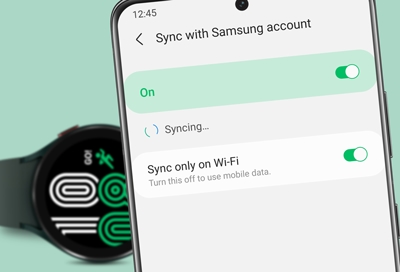
Common Syncing Problems And Fixes
Syncing problems are frustrating but usually easy to solve. Here are common issues and how to fix them:
- Watch Not Syncing: Make sure Bluetooth or Wi-Fi is on, and both devices are charged.
- Data Delays: Sometimes, syncing is delayed by poor connections or app bugs. Restart both devices and try again.
- Duplicate Data: This can happen if you use multiple phones with one watch. Stick to one main device for syncing.
- Cloud Issues: If your data isn’t showing up on other devices, check your cloud account or try logging out and back in.
- App Permissions: Check if the watch app still has permission to access health, location, or notification data.
Practical Tips
- Sync Regularly: Make it a habit to open the smartwatch app daily to ensure data is up to date.
- Update Software: Install the latest updates for your watch and its app. Updates often fix syncing bugs.
- Clear Cache: If the app acts up, clearing its cache or reinstalling can help.
- Manual Sync: Most apps let you force a sync by pulling down on the main screen or pressing a “Sync Now” button.
How Syncing Affects Battery Life
Data syncing uses energy, but how much? Here’s what to know:
- Bluetooth syncing is the most battery-friendly and is the default for step and notification syncing.
- Wi-Fi syncing uses more power, especially when downloading music or apps.
- Cellular syncing drains battery fastest. If your watch has LTE, it’s best to use it only when necessary.
Pro Tip: Turn off Wi-Fi and cellular when you don’t need them. This can add hours to your watch’s battery life.
Offline Syncing: How Watches Handle No Connection
What happens if your smartwatch isn’t connected? Most watches store data locally and upload it when a connection returns. For example, you can go for a run without your phone. When you’re back in range, the watch syncs all data at once.
Non-Obvious Insight: Some watches have a limited memory for unsynced data. If you go days without syncing, older data may be deleted to make space. Check your watch’s manual for details.
Third-party Apps And Syncing
Many users install extra apps on their smartwatches for fitness, productivity, or entertainment. These apps may have their own syncing rules.
- Health Apps: Strava, MyFitnessPal, and others can link to your watch, pulling data for deeper analysis.
- Productivity Apps: Calendar and to-do apps sync events and reminders.
- Streaming Apps: Music or podcast apps may sync playlists or downloads, often using Wi-Fi for speed.
Before installing, check what permissions the app needs and if it fits your privacy preferences.
Syncing With Multiple Devices
Some users want to sync one watch with multiple phones or tablets. Most brands recommend using a single main device for best results. Multiple device syncing can cause:
- Data conflicts: Two devices may upload different versions of the same data.
- Missing notifications: Only one device may get alerts.
- Account locks: Some services block syncing to more than one device for security.
If you must use two devices, check your watch brand’s support guide for best practices.
The Role Of Cloud Platforms In Syncing
Cloud platforms—like iCloud, Samsung Cloud, Fitbit Cloud, or Garmin Connect—play a huge role in data syncing. They store your watch data online, so you can:
- Access stats from any device
- Restore data if you lose your watch or phone
- Share workouts with friends or coaches
Key Insight: Cloud syncing is not instant. Sometimes, there’s a delay before data appears on all devices. This is normal and depends on your internet connection.
How Data Syncing Impacts Your Health Insights
Syncing is more than convenience. It powers many advanced features:
- Long-term trends: Apps can show months of sleep or fitness data only if syncing is regular.
- Doctor Sharing: Some health apps let you export or share reports with your doctor.
- Goal Tracking: Syncing keeps your step, calorie, or activity goals up to date.
If syncing fails, you may miss important trends or lose motivation.
How To Improve Sync Reliability
Want smoother syncing? Here are proven strategies:
- Keep devices close: Bluetooth works best when devices are within a few feet.
- Avoid interference: Other wireless devices (like Wi-Fi routers or microwaves) can disrupt Bluetooth.
- Use the latest app version: Older apps may have bugs that stop syncing.
- Charge regularly: Low battery can disable syncing to save power.
- Restart weekly: A simple restart can fix many connection glitches.

Future Trends: How Will Smartwatch Syncing Evolve?
Syncing technology is improving rapidly. Here’s what’s coming:
- Faster Transfers: Next-generation Bluetooth (like Bluetooth 5.2) will allow bigger data transfers, even music files, in seconds.
- Offline AI: Watches will analyze more data locally, syncing only key stats to save battery.
- Universal Sync: Efforts like Google’s Health Connect aim to make syncing between brands smoother, so your Garmin, Fitbit, and Samsung data are all in one place.
For more on the future of wearable syncing, see this Wearable Technology Wikipedia page.
Frequently Asked Questions
How Often Does My Smartwatch Sync With My Phone?
Most smartwatches sync automatically in the background, usually every few minutes if they’re connected. You can also open the companion app and manually trigger a sync for instant updates.
Can I Sync My Smartwatch With More Than One Phone?
Most brands recommend using one main phone for syncing. Syncing with multiple phones can cause data conflicts or missing notifications. Check your watch’s support guide for details on using multiple devices.
Is My Health Data Safe When Syncing To The Cloud?
Brands like Apple, Samsung, and Fitbit use strong encryption and security measures to protect your health data. However, no cloud system is 100% safe. Always use a strong password and enable two-factor authentication for extra protection.
Why Is My Smartwatch Not Syncing Properly?
Common reasons include Bluetooth or Wi-Fi being turned off, low battery, outdated apps, or connection interference. Try restarting both devices, updating your app, and checking permissions.
Does Syncing Use A Lot Of Battery?
Bluetooth syncing uses very little battery. Wi-Fi and especially cellular syncing use more power. To save battery, use Bluetooth for everyday syncing and turn off Wi-Fi/cellular when not needed.
Smartwatches are most powerful when they sync data smoothly. By understanding how syncing works and following best practices, you’ll enjoy accurate stats, timely notifications, and better health insights—right from your wrist.


